Orders
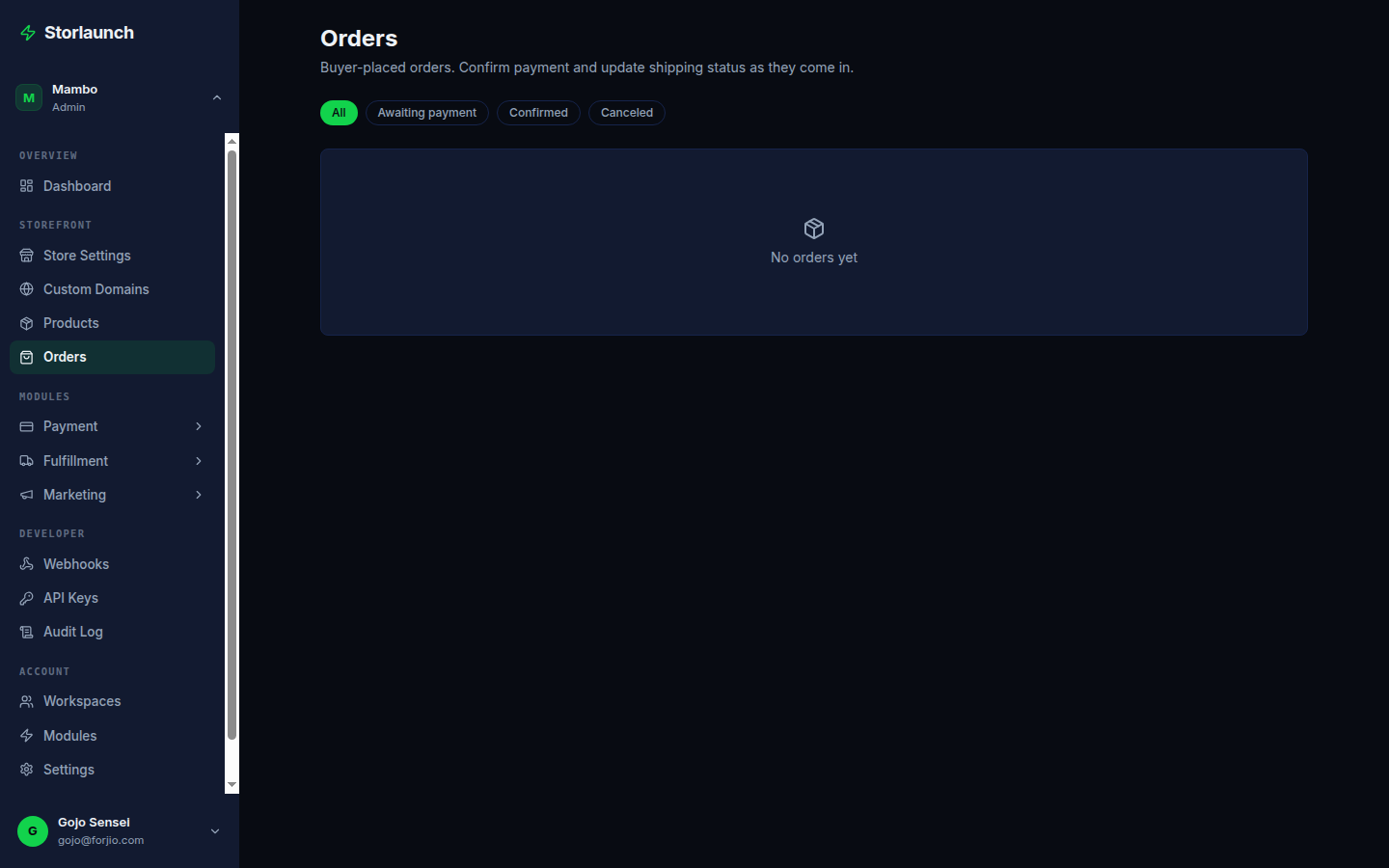
The Orders page (/dashboard/orders) is where you watch the money come in and the goods go out. Every cart that survives checkout becomes an order; every order has a payment status, a fulfilment status, and a trail of events.
This page covers the order lifecycle, how to fulfil and refund, and how the embedded Plugipay (payments) and Fulkruma (fulfilment) surfaces fit in.
The order lifecycle
Orders move through two parallel state machines: payment and fulfilment.
Payment:    pending  →  paid  →  refunded / partially_refunded
                    ↘  failed

Fulfilment: unfulfilled  →  partial  →  fulfilled  →  delivered
                       ↘  canceled
An order is "done" when both reach a terminal state. Most orders pass through both in under a minute (digital) or a few days (physical).
Status: payment
| State | Means |
|---|---|
pending |
Buyer submitted the cart; Plugipay is processing the payment. Rare for cards, common for bank transfers and virtual accounts. |
paid |
Plugipay confirmed funds. The order is "yours" — safe to fulfil. |
failed |
Plugipay couldn't process the payment. The order sits in this state pending buyer retry. |
refunded |
A refund covering the full amount succeeded. |
partially_refunded |
A refund covering less than the full amount succeeded. |
Payment status is driven by Plugipay webhooks — you don't move it manually. The Plugipay checkout session ID is shown in the order detail panel; click it to open the Plugipay-side view.
Status: fulfilment
| State | Means |
|---|---|
unfulfilled |
Paid but nothing shipped or delivered yet. |
partial |
Some items shipped/delivered, others not. Common for split shipments. |
fulfilled |
All physical items have a tracking number and Fulkruma has handed off to the courier. |
delivered |
Courier reported delivery (physical), or download attempt logged (digital). |
canceled |
The fulfilment was canceled before shipment. The payment is usually refunded in tandem. |
For physical orders, fulfilment status is driven by Fulkruma webhooks. For digital orders, Storlaunch generates delivery links automatically the moment payment succeeds — you don't have to do anything.
The list view
Columns on /dashboard/orders:
- Order — short order ID + a buyer avatar.
- Buyer — name and email.
- Total — line total in display currency.
- Payment — status badge.
- Fulfilment — status badge.
- Placed — short date stamp.
Filters:
- Status — filter by payment or fulfilment state.
- Storefront — if the workspace has multiple.
- Date range — today, last 7 days, last 30, custom.
- Free-text search — matches buyer email, order ID, or product name.
Saved filter views (e.g., "Unfulfilled paid orders") live in the left panel.
The order detail page
Click an order to open /dashboard/orders/<id>. Five sections:
Header
Order ID, placed-at timestamp, payment and fulfilment status, total. The actions menu has Refund, Cancel, Resend receipt, Edit notes.
Items
The line items as snapshotted at purchase time — product name, variant, quantity, unit price, line total. The snapshot is frozen: if you change the product's price tomorrow, this order still shows what the buyer agreed to.
For each item we show its fulfilment state:
- A tracking number (if shipped via Fulkruma)
- A signed download link (if digital, with click history)
- A license key (if digital + license enabled)
Buyer
Buyer's name, email, phone, shipping address, billing address. Clicking the email opens the customer detail page with their full order history in your workspace.
Payment
Status, amount, fees, net. A link to the Plugipay checkout session. If a refund has occurred, the refund record is here with its own status and amount.
Activity
A chronological feed: order placed, payment authorized, payment captured, fulfilment created, courier picked up, delivered, receipt sent, refund requested, refund succeeded. Every state change appears here with a timestamp and (where applicable) the actor.
Fulfilling an order
The default fulfilment flow is hands-off:
- Digital orders — fulfilled automatically when
payment.succeededfires. The delivery link is emailed to the buyer; the download is tracked. - Physical orders — Storlaunch emits a fulfilment-requested event into Fulkruma; Fulkruma picks, packs, ships, and pushes status webhooks back. No manual action needed.
You'll only intervene manually when:
- Partial shipments. From the order detail, click Create fulfilment and select a subset of items. Fulkruma will treat the rest as a separate shipment.
- Manual fulfilment (no Fulkruma integration). For workspaces still on manual mode (e.g., shipping from your own home), the Mark as fulfilled button lets you record tracking info yourself.
- Hold or cancel. Hold pauses fulfilment without canceling; cancel kills the shipment and (usually) triggers a refund.
Refunding an order
From the order detail, click Refund. Two modes:
- Full refund — reverses the entire payment. Fulfilment is auto-canceled if not yet shipped.
- Partial refund — specify an amount or pick line items.
You'll provide:
- An amount (or items)
- A reason:
requested_by_customer,duplicate,fraudulent,other - An optional internal note (not shown to the buyer)
Storlaunch calls Plugipay's refund API. The refund is asynchronous — payment status moves to pending_refund, then refunded or partially_refunded when Plugipay confirms.
For physical orders that have already shipped, the refund happens but the goods are already in motion. Most merchants pair a "shipped + refunded" order with a return label workflow handled separately.
Manual orders
The Manual orders page (/dashboard/manual-orders) creates orders that bypass the public checkout — useful for:
- Phone or DM orders ("I'll take three units, here's my card on file")
- B2B invoicing
- Concert / event ticket pre-sales
You fill in the buyer, products, and shipping address; Storlaunch generates a Plugipay payment link to send to the buyer. When they pay, the order joins the normal lifecycle.
Webhooks
Order mutations emit events you can subscribe to:
order.created— cart turned into a (pending) orderorder.paid— payment confirmedorder.fulfilled— all items shipped/deliveredorder.canceledorder.refunded/order.partially_refunded
See API → Webhooks (coming soon) for shapes and signature verification.
Exports
The Export button at the top of the orders list generates a CSV with one row per order or per line item (your choice). Useful for accounting, returns processing, or pulling into a BI tool.
The export respects the active filters — if you've narrowed to "last 30 days, fulfilled, storefront A", the CSV contains only those rows.
Next
- Storefront — where buyers come from.
- Products — what they buy.
- API — drive orders programmatically.