Products
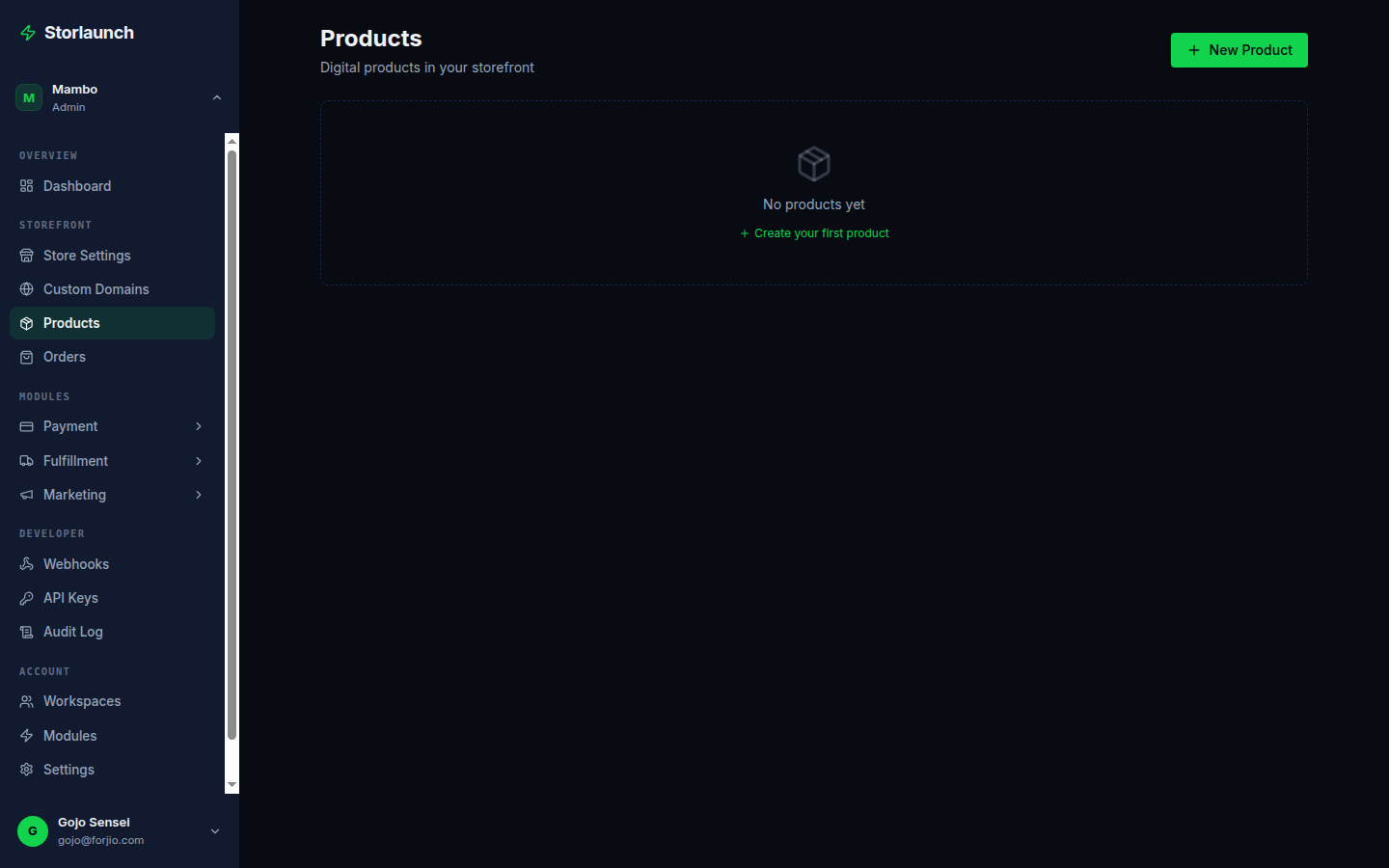
The Products page (/dashboard/products) is the catalog — every product you sell, across every storefront in the workspace. This page covers creating products, managing variants and inventory, attaching digital files, and bulk operations.
If you only need to add one product, the Quickstart covers it in three minutes. This page is the deeper reference.
What a product holds
Every product has the same shape, whether you create it from the portal or the API:
| Field | What it's for |
|---|---|
id |
Storlaunch-assigned, looks like prod_01H…. Stable forever. |
name |
What buyers see in product cards and on the checkout. |
slug |
URL-safe identifier on the storefront: /products/<slug>. Auto-generated from name; editable. |
description |
Markdown, rendered on the product detail page. |
price |
In the smallest currency unit (rupiah, sen). IDR 50,000 is 50000. |
currency |
Defaults to the storefront's currency. |
type |
physical or digital. Drives the fulfilment path. |
thumbnail, coverImages |
Image URLs. Upload via the form's drag-and-drop. |
tags |
Free-form labels. Used for filtering on the storefront and in reports. |
published |
Hide from the storefront until ready. |
archived |
Soft-delete — no longer purchasable but historical orders still reference it. |
metadata |
Up to 50 key-value string pairs of your own data. |
Identifiers carry their type as a prefix — see Concepts → Identifiers for the full list.
The list view
From the sidebar, click Products. You'll land at /dashboard/products.
Columns:
- Product — thumbnail + name + type badge (physical/digital).
- Price — display price in the storefront's currency.
- Inventory — on-hand for physical products; activations remaining for digital with license keys.
- Status — published, draft, archived.
- Created — short date stamp.
Search by name. Filter by type, status, or tag. The list paginates 50 at a time with cursor-based pagination — the cursor lives in the URL so bookmarks resume where you left off.
Creating a product
Click New product. The form is split into three tabs:
Basics
- Name (required) — max 200 characters.
- Slug — auto-generated; click to edit.
- Description — markdown editor with preview.
- Type (required) — choose physical or digital before continuing; some fields depend on this.
- Price (required) — in the smallest currency unit.
- Tags — comma-separated.
Media
- Thumbnail — the card image in listings. Recommended 1:1, at least 600x600.
- Cover images — gallery on the product detail page. Up to 8, drag-and-drop to reorder.
Images are uploaded to Storlaunch's CDN and optimized on the fly — you can upload a 5MB PNG and we'll serve a 50KB WebP variant to the browser. See Settings → Uploads for the storage allowance on your plan.
Type-specific
For physical products:
- Weight, length, width, height — used by Fulkruma to compute shipping rates.
- Origin location — which Fulkruma warehouse this ships from.
- Inventory tracking — on/off. When on, the storefront prevents oversells.
- Requires insurance — courier-level shipping insurance flag.
- GTIN, brand, Google product category — used by the Ripllo product-feed generator for Google Shopping and Meta catalog.
For digital products:
- Product files — the actual files buyers download. Upload one or many; each gets a signed link per order.
- License key generation — on/off. When on, every order produces a unique key.
- Max activations — how many devices a single license can run on.
Click Save as draft to keep it private; click Publish to make it shoppable on the linked storefront(s).
Variants
A variant is a specific purchasable form of a product — "Medium / Red", "PDF / EPUB", "Annual / Monthly". The default product has one implicit variant.
To add variants, scroll to the Variants section of the product form:
- Define the option axes: e.g.,
SizeandColor. - Add values for each:
Size: S, M, L;Color: Red, Blue. - Storlaunch generates one variant per combination (S/Red, S/Blue, M/Red, etc.).
For each variant you can override:
- Price
- SKU
- Inventory (independent per variant)
- Product files (digital only — useful for format variants)
Variants share the parent product's description and images by default but can override images.
Identifier: variant_01H….
Inventory
The Inventory page (/dashboard/fulfillment/inventory) shows on-hand levels across all physical products and variants.
- On-hand — physical stock.
- Allocated — reserved for unfulfilled orders.
- Available — on-hand minus allocated.
Adjust levels manually or via the API for back-office syncing.
When available reaches zero, the storefront marks the variant as "Out of stock" and prevents add-to-cart unless the product allows backorders (configurable per product).
Low-stock alerts can be configured under Settings → Notifications.
Digital files
For digital products, the Files tab on a product accepts uploads (up to your plan's per-file limit). Each file:
- Is stored encrypted at rest.
- Generates a unique signed URL per order, time-limited (default 7 days post-purchase).
- Tracks download attempts on the order's delivery record.
Variants can have variant-specific files — e.g., an ebook with separate PDF and EPUB variants, each pointing to its own file.
Bulk import
Click Bulk import at the top of the products list. Upload a CSV with the columns:
name,description,price,currency,type,sku,inventory,thumbnail_url,tags
Storlaunch parses the CSV, validates each row, and shows a preview before committing. Errors (missing required fields, malformed prices) are shown inline; correct them in the CSV and re-upload.
For programmatic catalog management, use the API instead — the same payload via JSON, no CSV needed.
AI-generated content
For accounts on the Pro and Business plans, the product form has an AI generate button next to the description and tags fields. It uses the product name (and any thumbnail) to suggest:
- A 2-3 paragraph description
- 5-10 relevant tags
- An SEO meta description
Generated content is editable before save — we don't auto-publish. Each AI generation counts against your plan's monthly quota; see Settings → Billing for current usage.
Archiving vs deleting
Storlaunch doesn't hard-delete products by default — an order from six months ago needs to reference what was sold, even if the product is no longer offered.
- Archive — hides the product from the storefront and the default product list but preserves historical references.
- Delete (force) — only allowed if the product has zero orders. Otherwise the button is disabled.
Webhooks
Product mutations emit events you can subscribe to:
product.createdproduct.updatedproduct.archivedproduct.deleted
See API → Webhooks (coming soon) for the event shapes and signature verification.
Next
- Orders — what happens when a buyer purchases a product.
- Storefront — configure the shop these products appear on.
- API — drive products programmatically.